When a smart TV keeps buffering, the cause may be an unstable internet connection, weak Wi-Fi signal, an app issue or a problem with the TV itself. Repeatedly restarting the router may help, but it is not always the right first step. The most efficient approach is to identify whether the TV has lost its connection, video playback is struggling or an app has stopped responding. These checks can help Australian households narrow down the problem before contacting their internet provider or TV support.
Start by observing what happens on screen. Different symptoms often point towards different causes, so avoid treating every playback problem as a Wi-Fi fault.
| What you notice | Possible cause | First check |
| TV cannot connect to the network | Wi-Fi settings, password or router issue | Confirm the selected network and test another device |
| Several streaming apps keep buffering | Weak or unstable connection, or internet congestion | Test the connection near the TV |
| Only one app buffers or freezes | App-specific or service issue | Try another app and check for updates |
| Menus and apps respond slowly | TV software or performance issue | Restart the TV and check for updates |
If the TV shows that it is disconnected, focus on network access first. If menus work but a video pauses repeatedly, investigate streaming quality and connection stability. If the whole interface freezes, the issue may involve software or device performance rather than internet speed alone.
Before changing settings, identify your TV model and operating system. Menu names and troubleshooting options vary between models, so instructions for one smart TV platform may not match another.
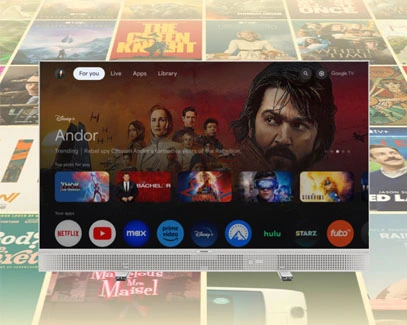
Check the model label, packaging or product documentation. Then review the available system information and confirm whether your TV uses Google TV or another interface. This helps you find the correct software instructions and determine which connection options are supported.
The skyworth smart TV features page provides an overview of SKYWORTH smart TV capabilities, including streaming apps and screen mirroring. However, features and menu options should be verified against your particular model rather than assumed to apply to every TV.
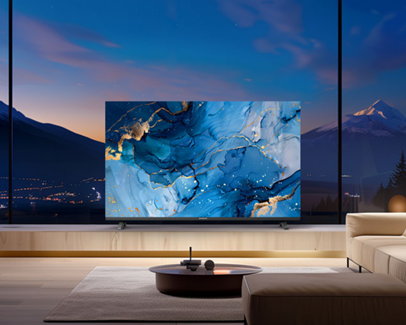
A phone or laptop working normally does not prove that the TV has a stable connection. The television may be farther from the router, separated by walls or affected by interference.
Open the TV's network settings and confirm that it is connected to the intended Wi-Fi network. If the connection appears active, open another streaming app and test playback. You can also check another device in the same room to see whether it experiences similar problems.
If every device struggles, investigate the household internet connection. If other devices work but the TV does not, focus on the TV's network settings, software and app behaviour. Restarting the TV and router can help, but test playback after each step so you can tell whether the change made a difference.
Wi-Fi performance depends on signal strength, interference, distance and network conditions. A 5 GHz connection may provide better performance when the TV is relatively close to the router, while 2.4 GHz may reach farther in some homes. Neither band is automatically best in every situation.
Try moving the router to a more open, central position or reducing obstacles between it and the TV. If the router offers separate network names, test a compatible band and compare playback stability.
A wired Ethernet connection may be worth testing if both the TV and router support it. A cable can avoid some wireless interference, although it cannot fix every internet or streaming-service problem.
Open a second streaming service to see whether the problem occurs across the TV or only within one app. If other services play normally, check the affected app for updates, sign-in issues or service interruptions. Restarting the app or TV may also help.
Streaming quality matters because higher resolutions require more sustained bandwidth. Netflix recommends a stable connection of at least 3 Mbps for HD, 5 Mbps for Full HD and 15 Mbps for 4K. These are service recommendations, not guarantees that buffering will never occur.
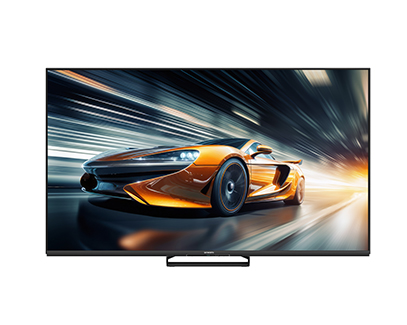
For viewers watching 4K content, the skyworth 4k LED TV range provides an example of SKYWORTH's 4K television options. Before troubleshooting high-resolution playback, confirm the exact model's specifications and connection options. A 4K screen does not itself cause buffering; the stream, network conditions and service requirements all matter.
Contact your internet provider if multiple devices experience persistent slowdowns or disconnections, especially after basic router checks. Your streaming service is the more relevant contact when one app consistently fails while other apps work normally.
Contact SKYWORTH support if the TV repeatedly freezes, cannot maintain a connection while other devices work correctly, or continues to have problems after appropriate software and network checks. Provide the model number, operating system, error messages and steps already tried. This information can help support teams narrow down the cause.
A speed test measures performance at a particular time and device. Wi-Fi interference, fluctuating speeds, congestion or streaming-service issues may still interrupt playback.
No. It can offer higher speeds at shorter distances, while 2.4 GHz may provide better reach in some layouts. Compare the available bands and use the one that performs more reliably.
The issue may involve that app, its settings, account access or service availability. Test another app before changing the whole network.
Check the TV's connection and test another app first. Then restart the device or router as appropriate, testing playback after each change.
Streaming 4K content generally requires more bandwidth than lower-resolution video. Follow the streaming service's recommendations and consider connection stability as well as peak speed.
Contact your internet provider if multiple devices have connection problems, the streaming service if only its app fails, or TV support if the problem appears specific to the television and persists after basic troubleshooting.

 sales@skyworthau.com

 English
 français